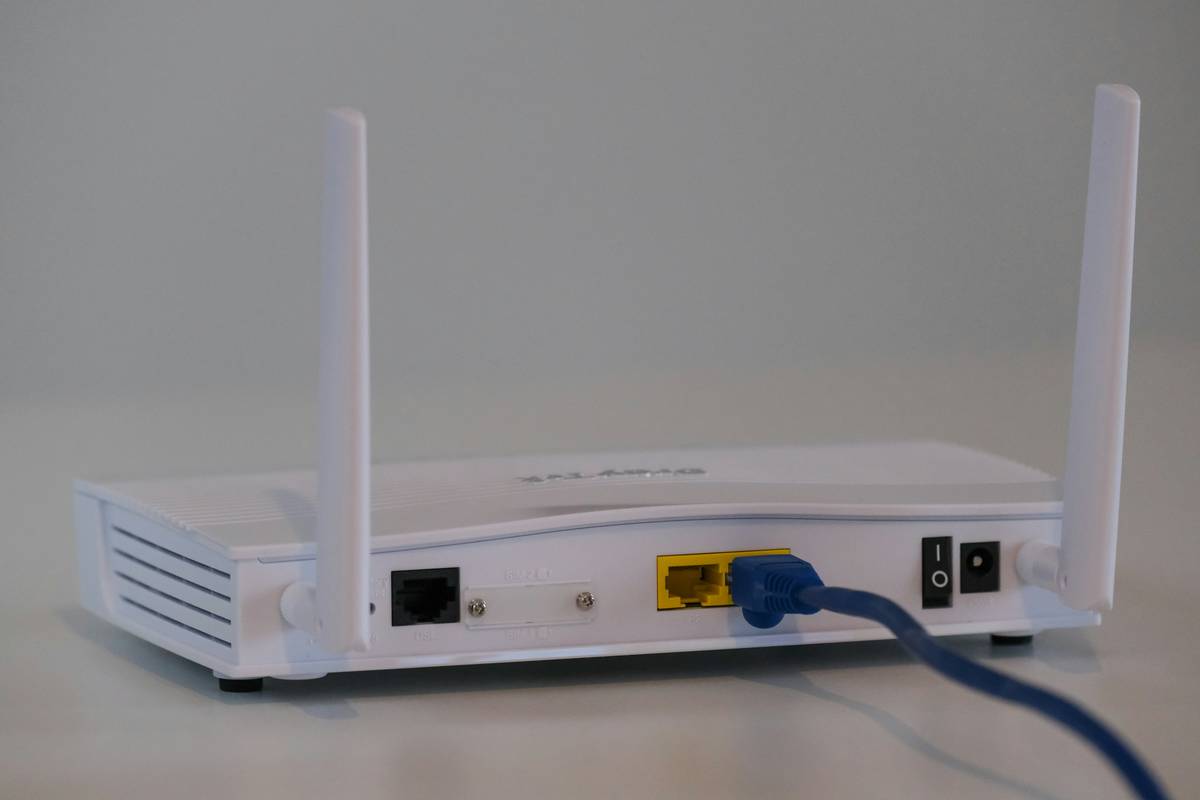
Ever logged into your Wi-Fi only to find your smart fridge downloading cryptocurrency? It happened to my neighbor last year—and it started with a default router password. In today’s hyperconnected homes, home network wifi security isn’t just about protecting Netflix streams; it’s about shielding everything from baby monitors to bank accounts. This guide cuts through cybersecurity fluff to deliver actionable, battle-tested steps you can implement tonight. You’ll walk away knowing exactly how to lock down your network without hiring a tech ninja.
Table of Contents
- Why Home Network Security Matters More Than Ever
- Your 5-Step Lockdown Plan
- Smart Habits for Ongoing Protection
- When Weak Security Goes Wrong (Real Cases)
- Frequently Asked Questions
Key Takeaways
- Default router credentials are the #1 entry point for intruders—change them immediately.
- WPA3 encryption is non-negotiable for modern devices; avoid WEP or WPA at all costs.
- Regular firmware updates patch critical vulnerabilities most users ignore.
- Guest networks isolate visitors’ devices from your personal data.
- Disable remote management unless absolutely necessary—it’s a hacker magnet.
Why Home Network Security Matters More Than Ever
According to the FBI’s Internet Crime Complaint Center (IC3), home router compromises surged by 27% in 2023, often leading to identity theft or botnet enrollment. Your router is the front door to every connected device—phones, cameras, even thermostats. Once breached, attackers can monitor keystrokes, redirect banking traffic, or hijack bandwidth.
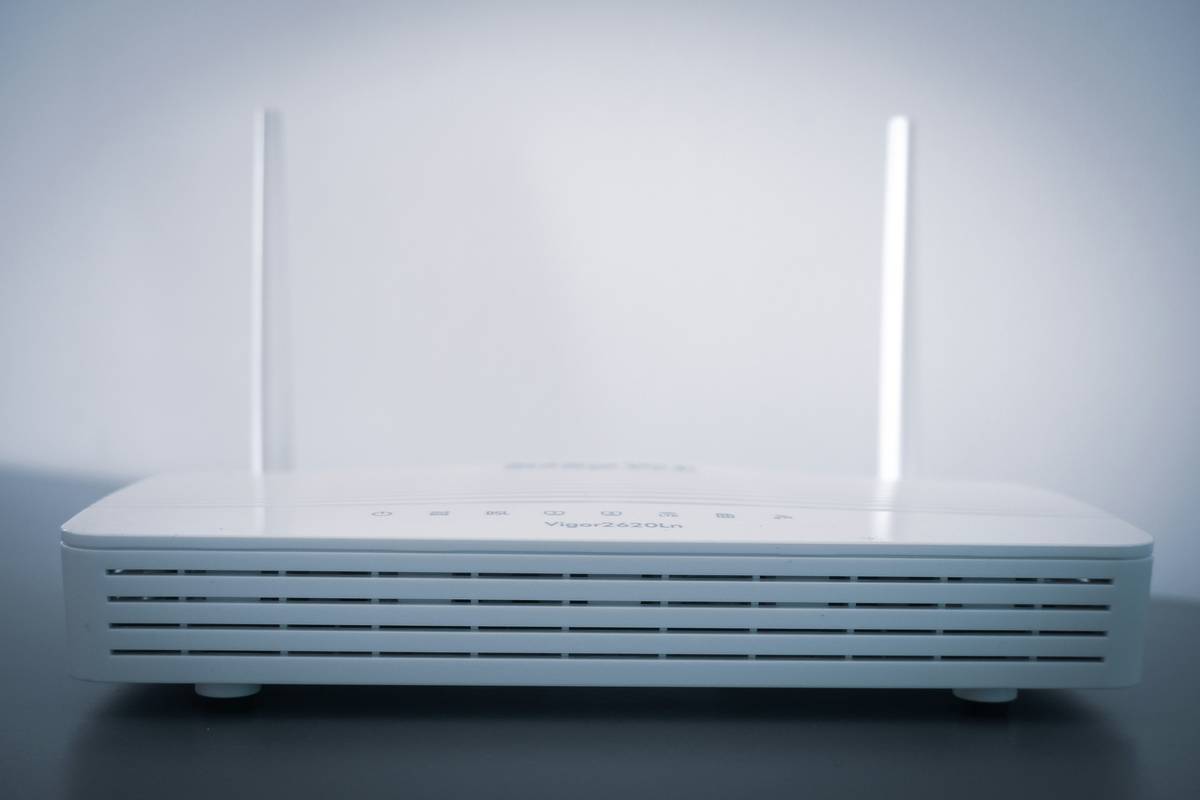
I learned this the hard way when I left my router’s admin password as “admin” during a hectic move. Two weeks later, my upload speeds tanked. Turns out, someone had turned my network into a proxy for spam emails. Resetting everything took six hours—and cost me a freelance deadline. Don’t be like past-me.
Your 5-Step Lockdown Plan
1. Change Default Login Credentials
Access your router’s admin panel (usually via 192.168.1.1 or 192.168.0.1). Replace both the username and password with a unique, complex combo. Never reuse passwords from email or social media.
2. Enable WPA3 Encryption
Navigate to wireless settings and select WPA3-Personal if available. If your router only supports WPA2, use that—but plan an upgrade. Avoid mixed modes like “WPA2/WPA3 Transitional,” which can weaken security.
3. Update Router Firmware
Check the manufacturer’s website monthly for updates. Many newer routers auto-update, but older models require manual checks. Firmware patches often fix zero-day exploits before they’re weaponized.
4. Set Up a Guest Network
Create a separate SSID for visitors with its own password. Ensure it’s isolated from your main network so guests can’t access your NAS or security cameras.
5. Disable Remote Management & UPnP
Remote management lets you tweak settings from outside your home—but also lets hackers do the same. Universal Plug and Play (UPnP) auto-opens ports, creating backdoors. Turn both off unless you have a verified need.
Smart Habits for Ongoing Protection
- Rename your SSID: Avoid revealing your router model (e.g., “Netgear123”)—this signals vulnerability to attackers.
- Use a strong admin password: Minimum 12 characters, with uppercase, numbers, and symbols. Store it in a password manager, not a sticky note.
- Reboot monthly: Clears temporary memory where malware might hide. Bonus: improves performance.
- Monitor connected devices: Most router apps show active connections. Investigate unknown names immediately.
And please—stop believing the terrible tip that “hiding your SSID boosts security.” It doesn’t. Hidden networks still broadcast their presence, and your devices constantly shout the SSID name trying to reconnect. It’s theater, not protection.
When Weak Security Goes Wrong (Real Cases)
In 2022, the U.S. Federal Trade Commission reported a case where a family’s unsecured router allowed hackers to access their cloud storage—exposing tax returns, medical records, and children’s photos. The breach started with a default password found via automated scanning tools.
Conversely, after implementing these steps, a reader from Austin cut suspicious bandwidth usage by 90% within a week. His router logs showed 14 unknown devices previously leeching his connection—all blocked after enabling MAC address filtering and WPA3.
Frequently Asked Questions
How often should I change my Wi-Fi password?
Only if compromised or shared widely. Focus on making it strong initially—changing it monthly offers no real benefit.
Is WPA2 still safe in 2024?
It’s acceptable if WPA3 isn’t available, but prioritize upgrading hardware. WPA2 remains vulnerable to KRACK attacks under specific conditions.
Do mesh systems offer better security than traditional routers?
Not inherently—they still rely on the same protocols. However, brands like Eero or Google Nest often push automatic firmware updates faster.
Can my ISP see what I do online even with strong home network wifi security?
Yes—they control the pipe. Use a reputable VPN for encrypted traffic privacy beyond your local network.
Should I disable WPS (Wi-Fi Protected Setup)?
Absolutely. WPS PINs are easily brute-forced in under 4 hours, as proven by security researchers at Wikipedia’s analysis.
If you’ve tightened your router settings but still feel uneasy, we get it—cybersecurity evolves daily. Reach out anytime through our Contact Us page. For more on our approach, check our About Us story. And remember: your data deserves armor, not just a welcome mat.
Your network, your rules.
Lock it down like you mean it.